
The creator, in detail
A tour of every part of the creator, and the keyboard shortcuts that make it quick.
Simple and Advanced
The switch in the toolbar changes how much you see. Nothing is lost when you switch: settings you can't see keep their values.
- Simple shows what most packs need: names, descriptions, icons, frames, goals, XP and "hidden".
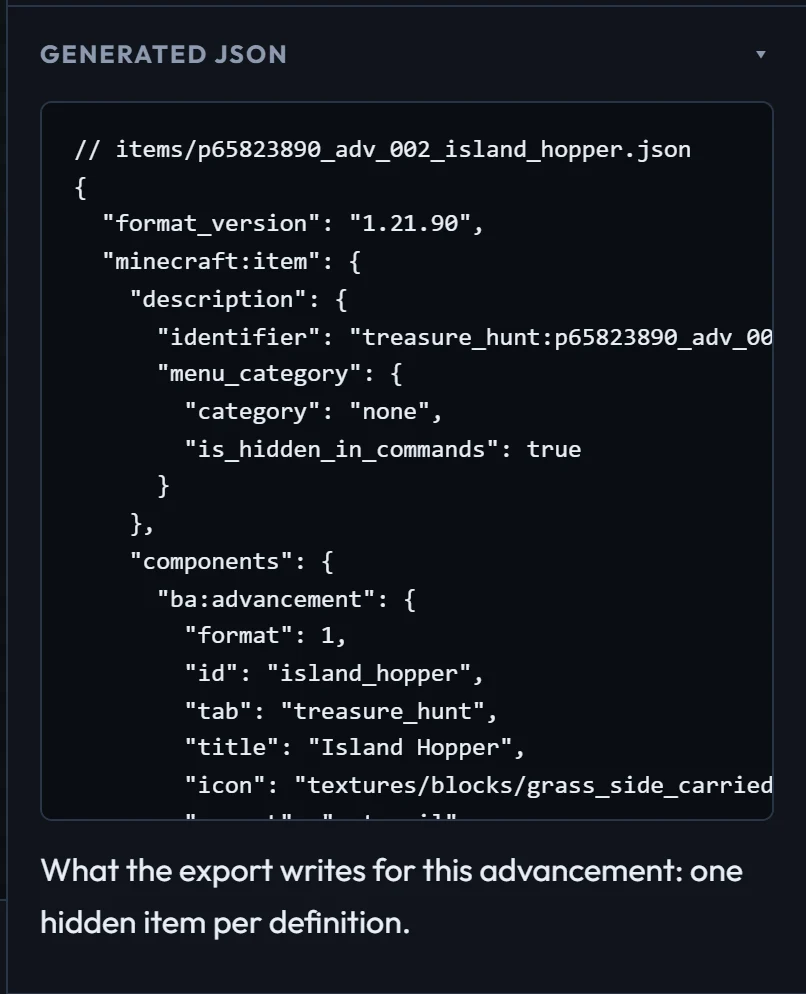
- Advanced adds ids and the namespace, the tab's reveal rule, position and locks, goal ids and checklist text, "needs this many", reward commands, toast and chat options, texture paths, and the generated JSON for each advancement.

The outline
The left column lists your pack, its tabs and each tab's advancements as a tree. A red or amber dot means something needs a look.
- Drag an advancement onto another to make it come after that one, or onto the top edge of one to place it just before, as its sibling.
- Drag an advancement onto a tab to move it, and everything after it, to that tab.
- Drag tabs to reorder them.
- Your images and Your add-ons at the bottom open their libraries.
The preview
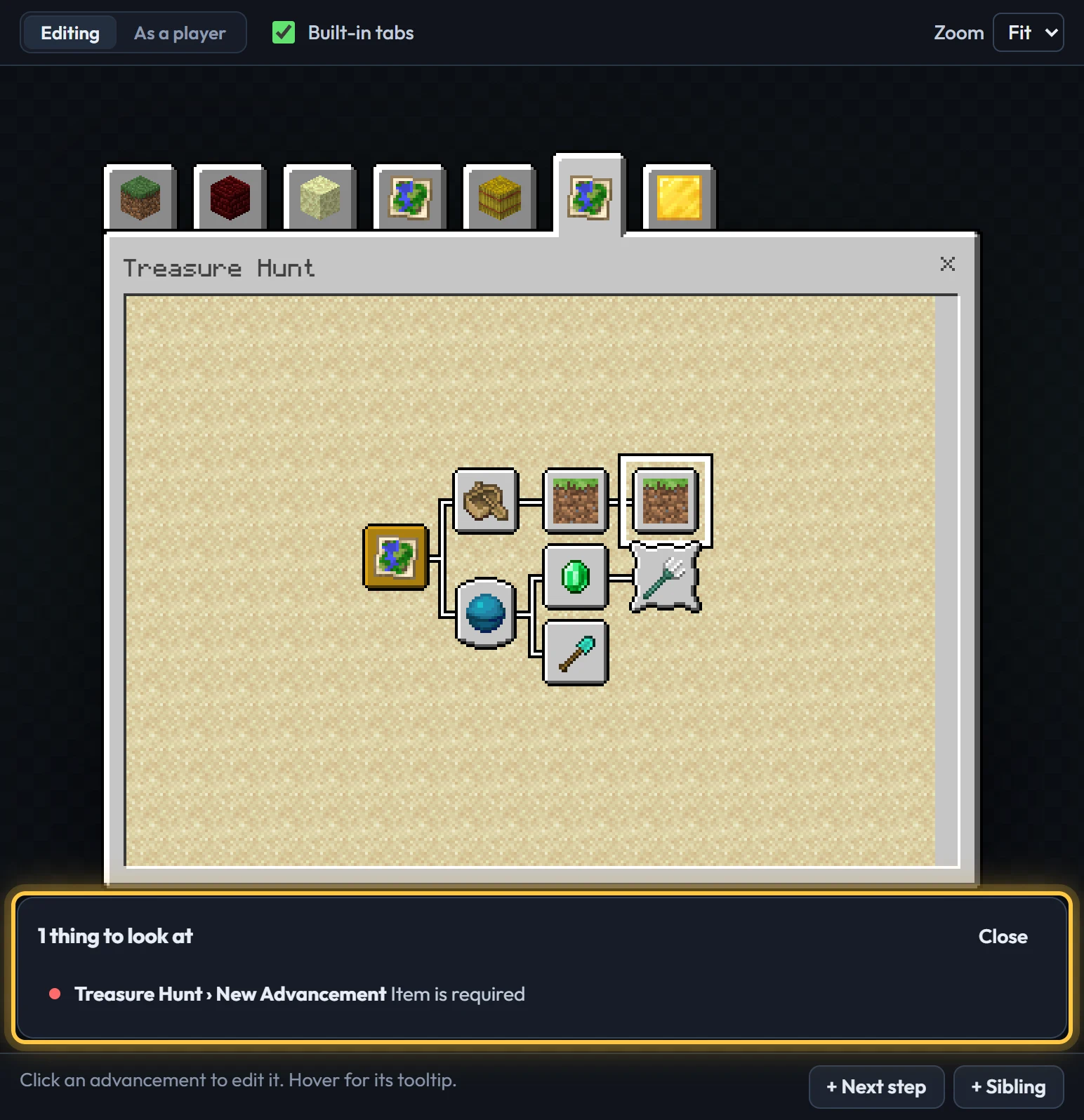
The preview draws the screen with the game's own layout code and textures, so what you see is what players get: tab positions, the tree's shape, connector lines, tooltips and scrolling.
- Editing shows everything; click an advancement to edit it.
- As a player applies the reveal rules: only what a player would see. Click advancements to complete them and watch the tree open up.
- Built-in tabs shows BedrockAdvancements' own tabs before yours, as in game.
- Zoom: Fit uses the biggest whole-pixel size that fits, like the game's GUI scale.
Problems
The status in the toolbar shows Ready to export, or how many things need fixing. Click it for the list, and click a problem to jump to it. Problems also show under the field they're about. Errors stop the export (the pack wouldn't load); warnings are worth a look but the pack still works.
Undo, saving and files
- Undo and redo everything, including deletes and drags: Ctrl Z, Ctrl Shift Z.
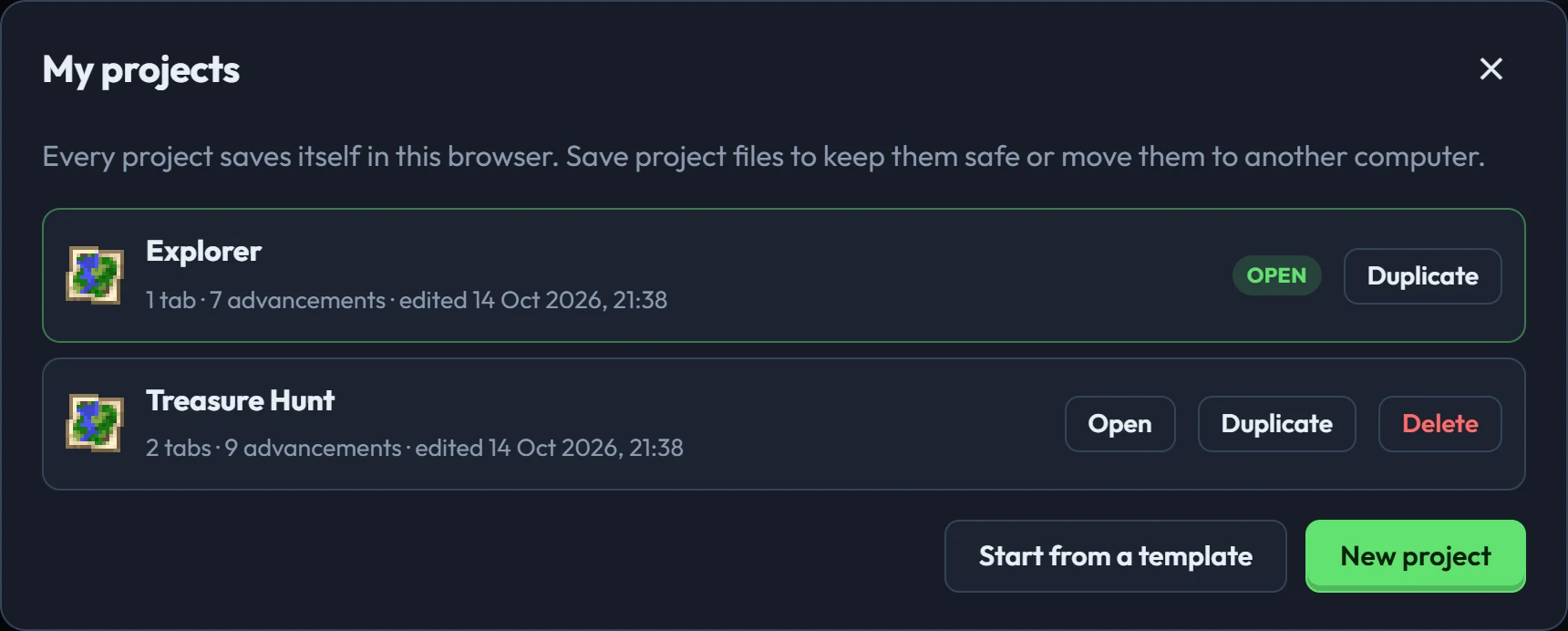
- Your project saves itself in this browser. "Saved in this browser" in the toolbar confirms it.
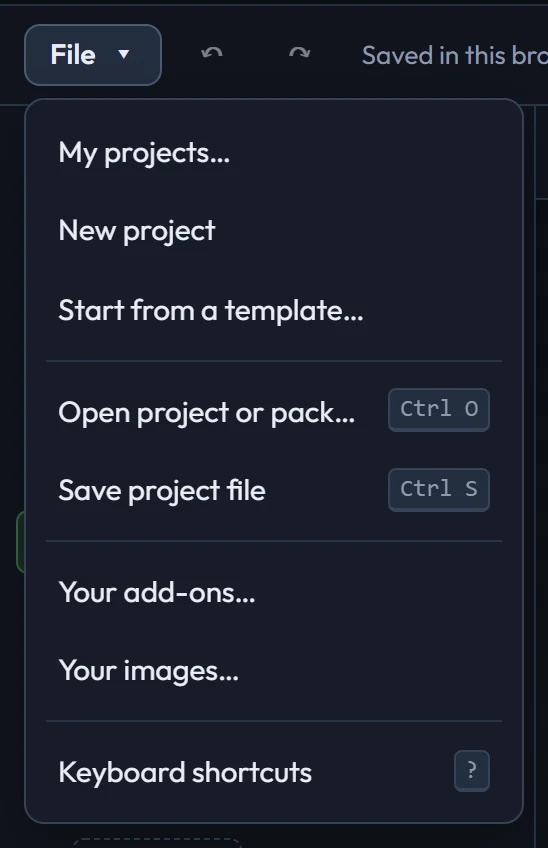
- File → Save project file downloads a
.baproject.jsonto keep or share. File → Open opens one, or a pack you exported, or any data-only pack. - Drop a project file or an image anywhere on the creator to open or add it.
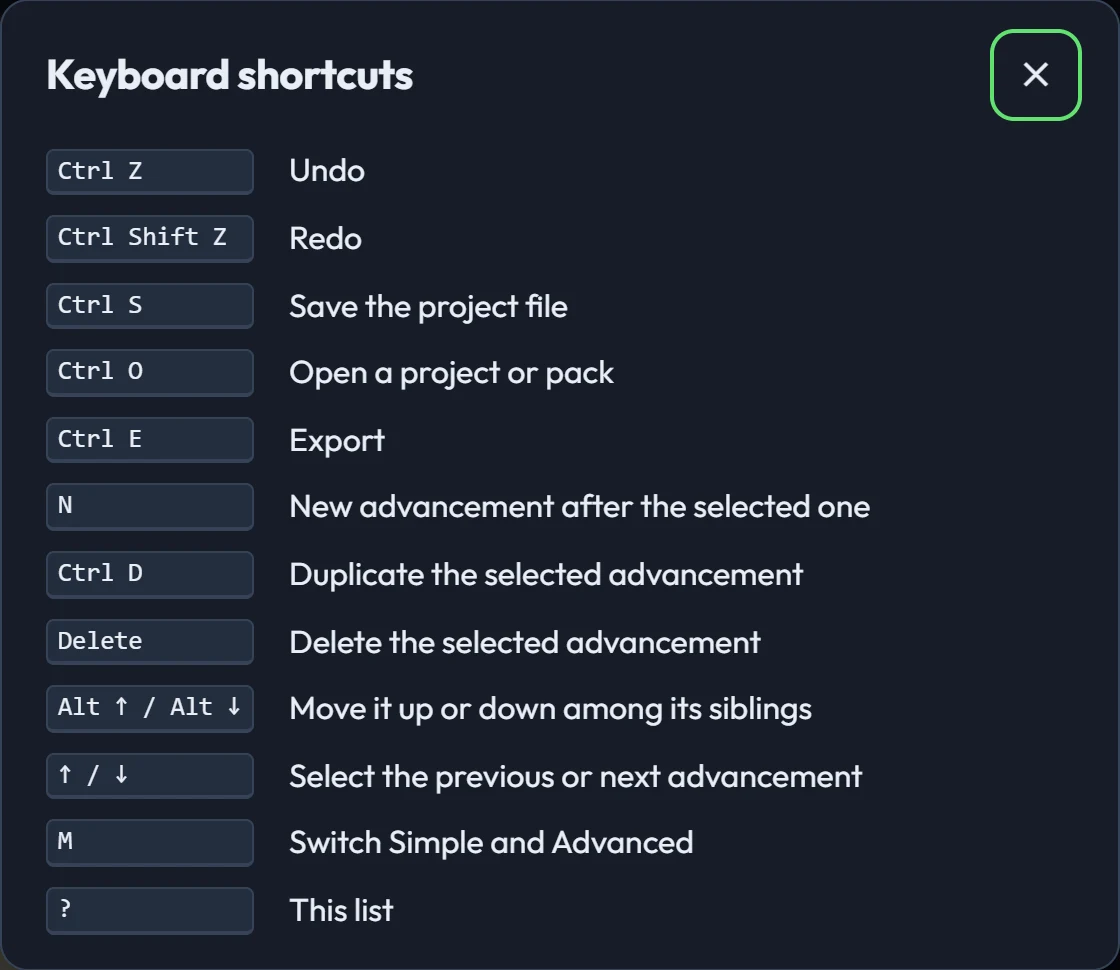
Keyboard shortcuts
| Ctrl Z / Ctrl Shift Z | Undo / redo |
| Ctrl S | Save the project file |
| Ctrl O | Open a project or pack |
| Ctrl E | Export |
| N | New advancement after the selected one |
| Ctrl D | Duplicate the selected advancement |
| Delete | Delete the selected advancement |
| ↑ / ↓ | Select the previous / next advancement |
| Alt ↑ / Alt ↓ | Move it among its siblings |
| M | Switch Simple and Advanced |
| ? | Show the shortcuts |
Tabs in detail
- Background: tiled behind the tree at its own pixel size. 16×16 block textures look like Java's.
- Reveal (Advanced): First advancement shown, the rest as you go (new tabs start with this) shows where each tree begins and reveals the rest as their parents are done; As you go, like Java hides even the first advancement, and so the tab, until it's done; Everything shown shows the whole tree from the start.
- Position (Advanced): where the tab sits. The Java tabs are 0 to 4 and the achievements tab 100; yours come after them unless you choose otherwise.
- Locked until (Advanced): the tab stays hidden, and its progress paused, until the player has the advancements you tick, from your other tabs. Great for chapters.